Korean Keyboard Setup
Add Korean to your keyboard and switch between Korean and English whenever you need to.
Korean Keyboards
There are a few different Korean layouts. I prefer the 2-set (두벌식) layout because it seems to be the standard/default on most systems. Consonants sit on the left and vowels on the right, so even if you have to poke around a bit to find what you're looking for, you can narrow it down to either hand fairly easily. On iOS, they call this layout the Standard layout, so just go with that if you're looking.
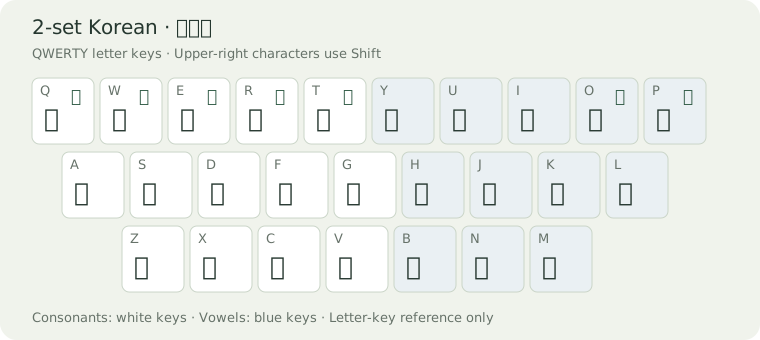
Setting up a Korean Keyboard
Setting up a Korean keyboard is fairly simple on most devices. You do not need a new physical keyboard or to change your device's display language. Instructions for different devices are below. Settings names may vary slightly by software version.
macOS
Add an input source
Open Apple menu → System Settings → Keyboard. Under Text Input, click Edit beside Input Sources, then the + button.
Choose 2-Set Korean
Select Korean → 2-Set Korean → Add, then Done.
Switching between languages
Now that a second language is added, you should see a new icon in the top status bar to the left of the wifi settings. To switch languages, click on that and choose 2-Set Korean from the menu. You can also swap between languages using the default keyboard shortcut, Control + Space.
Windows 11
Add Korean
Open Settings → Time & language → Language & region → Add a language. Search for Korean, select it, and choose Next, then Install. Leave Set as my Windows display language unchecked.
Check Microsoft IME (Optional)
Open the menu beside Korean and choose Language options. Under Keyboards, confirm Microsoft IME is installed; use Add a keyboard if needed. Its standard Korean input uses the 2-set arrangement.
Switching languages and to Hangul mode
Now that a second language has been added, you should see a button in the bottom taskbar next to the network icon that says ENG. You can click that to swap languages, or you can press Windows + Space to use the shortcut.
When using the Korean keyboard, another indicator will show up to the left of the language button (which now shows 한). If that new indicator shows A, that means you are in Roman character mode, and your keyboard will type as if it was in English mode still. Click the indicator to switch to 가 (Hangul), or press the right Alt key to toggle between Roman and Hangul.
iOS · iPhone & iPad
Add the keyboard
Open Settings → General → Keyboard → Keyboards → Add New Keyboard and choose Korean.
Choose Standard
Select Standard, then Done if prompted. If Korean is already installed, tap it in the Keyboards list to check the layout. Standard uses the 2-set arrangement; the compact 10-Key option has a different arrangement.
Switch while typing
Open Notes, tap a text field, and touch and hold the globe key to choose Korean. Use the globe again to return to English.
Android · Gboard
Open Gboard settings
These steps use Google's Gboard. Install and enable it if you use another keyboard and want to follow along. Open a text field and tap the keyboard's Settings gear, or find Gboard in your phone's on-screen keyboard settings.
Add Korean with the 2-set layout
Choose Languages → Add keyboard → Korean. Choose 2-Set / 두벌식, the full keyboard with consonants on the left and vowels on the right, then tap Done. Layout labels can vary by version.
Switch languages
Touch and hold the space bar and select Korean, or use the globe key if shown. Repeat to switch back to English.
Try your new keyboard
Open a note and type 한글. On a physical QWERTY keyboard in 2-set Korean mode, press g, k, s, r, m, f in sequence. The letters should combine into syllable blocks automatically.